Intelligent Filters
Intelligent filters turn a long Teams image history into a manageable result set. Image Gallery lets users combine filters to answer practical questions fast, such as who sent an image, when it was shared, or which conversation it came from.
For example, a user can look for images sent by a specific colleague during a specific calendar week, then keep narrowing the result until the right image is visible.
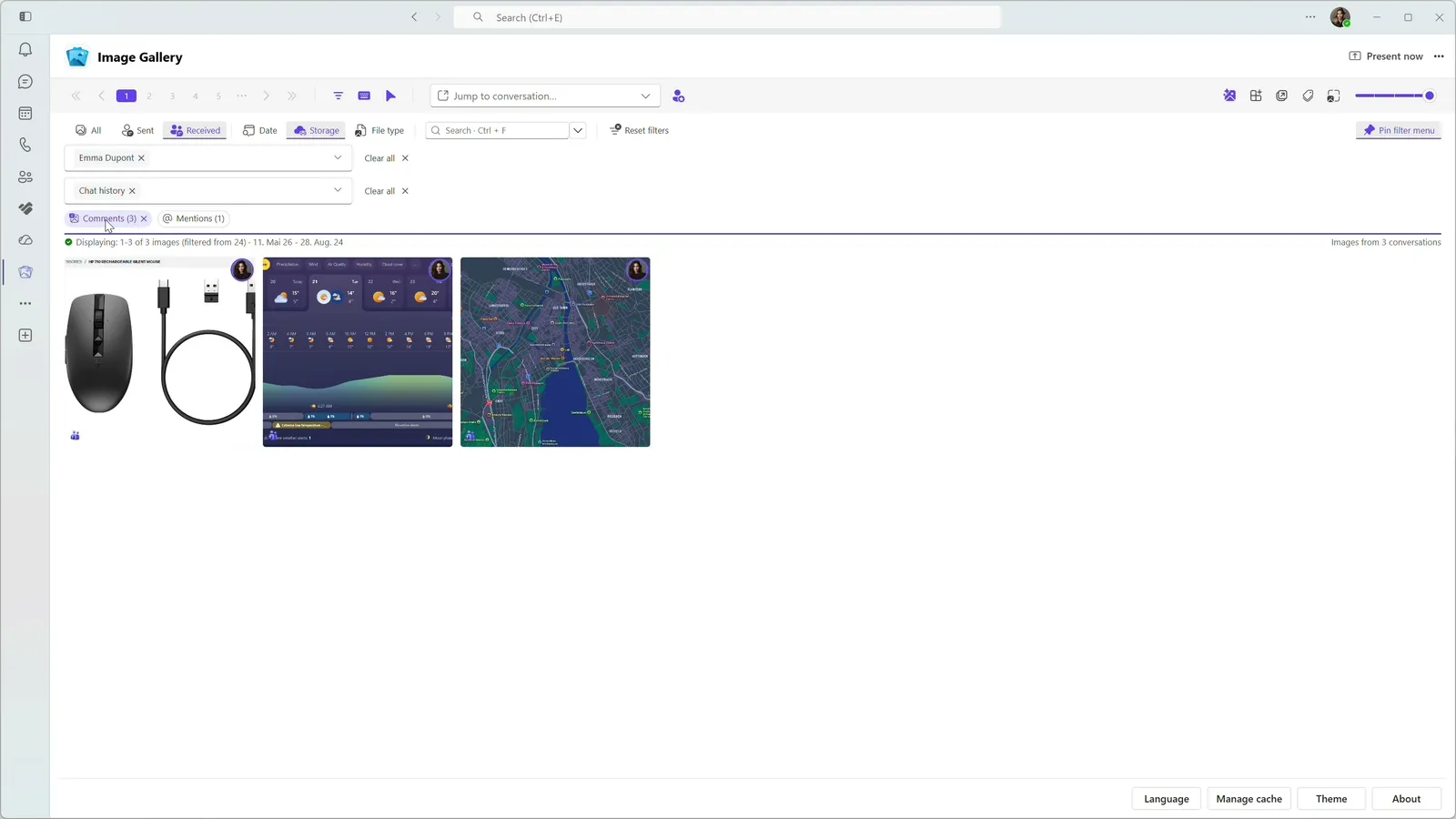
Narrow the gallery in steps
- Less manual scrolling through Teams history
- Combined filters instead of one catch-all search field
- Discovery even when filenames or surrounding messages are not memorable
- A clear path from broad browsing to focused results
All supported filters
Image Gallery supports the following filters:
- Sender: sent by you, sent by others, or sent by a specific person
- Date: sent in a specific week or on a specific date
- Storage source: stored in Teams chat history, OneDrive, or SharePoint
- File type: image file types such as JPG, PNG, WEBP, and other supported formats
- Message context: messages that contain text or comments, and messages that mention you
- Search: search by file name, optional AI-generated tag, or optional text detected inside the image
- Chat with self: Show images that you’ve sent to yourself
- Thread/Message: Show additional images from the same thread or the same message*
- Unavailable: Show images that were found in messages but for which you don’t have viewing permissions**
- AI image processing: Show unprocessed images or images that yielded no result (OCR/tags)***
Note
You can combine any number of filters you like. The filters support auto-pruning and automatically disable/hide unavailable filters to prevent empty results. I.e. if you already have a filter active that only yields .PNG results, selecting other formats such as .JPG will not be possible.
Note*
Filter for images from the same thread or message are not accessible through the filter bar. They are accessed via the configurable badges. If badges are enabled, images that belong to a thread or a message that contains other images will show a clickable badge that will activate the filter.
Note**
You may not have permission to view all images sent in a chat or a channel when images are stored on OneDrive or SharePoint. I.e. your were added to a chat after a link was shared with chat members. The Unavailable filter provides an efficient way of discovering these images and asking the owner for permission.
Note***
Filter for new (unporcessed) images or images that yielded no results (OCR/tags) are not accessible through the filter bar. They can be accessed from the AI Insights menu.
Built for real message history
Teams conversations collect a lot of visual information over time. Filtering keeps that history approachable as conversations, projects, and channels grow.
Explore more features
Image Gallery makes text inside Teams screenshots searchable with on-device OCR, helping users recover visual details without sending image content to an external AI service.
Image Gallery adds optional badges to image tiles so users can understand message, storage, and related-image context before opening each item.
Image Gallery gives Teams images a focused full screen viewer with zoom, copy, download, navigation, and a direct path back to the original message.
Image Gallery offers a Teams-friendly browsing experience with automatic theme detection, dark mode support, adjustable thumbnails, and a focused separate-window option.
Image Gallery includes a personal Teams app where users can browse, filter, and search images across enabled chats and channels from one place.
Image Gallery adds a dedicated image tab to a Teams chat or channel, including support for inline images shared directly in messages.
Start Finding Images in Teams Faster Today.
Install Image Gallery and use it for free or purchase a paid plan if your organization requires more than 50 users or any other paid feature.